
Sending a vet a treatment report
This guide shows you how to:
- Turn an appointment into a PDF report for the animal's vet
- Put several appointments into one PDF
It needs the vet portal on and a paid plan.
A report for one appointment
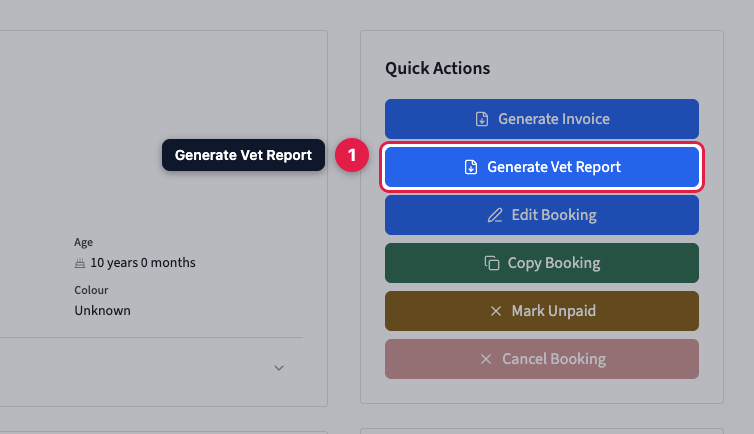
Open the booking and click Generate Vet Report under Quick Actions. The PDF downloads straight away. It carries your logo and contact details, the owner's details, the animal's name, species, breed and colour, and the service, date, time, length, staff member and status of the appointment. It also includes the appointment notes and any custom booking fields you've filled in, such as range of movement or exercises set.
Reports for several appointments at once
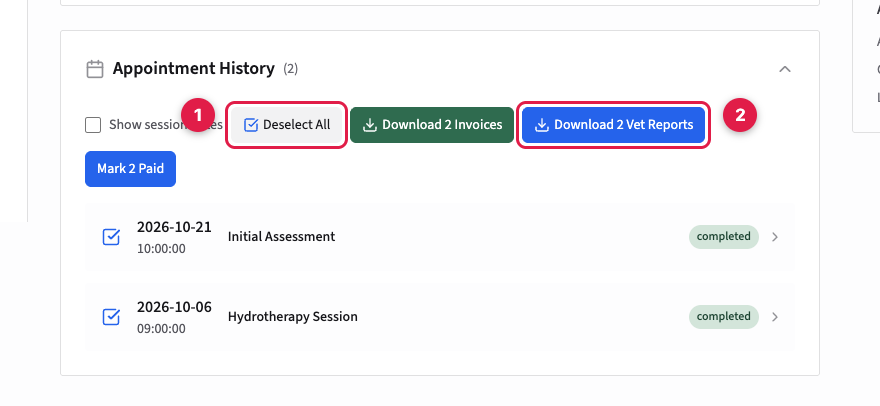
On the animal's record, open Appointment History. Tick the appointments you want, or click Select All, then click Download Vet Reports. You get one PDF with a report for each appointment, which suits a summary after a course of treatment.
Sending it
PetDesk doesn't email the report for you. Attach the PDF to an email to the practice. Its address is on the practice's entry in Settings, then Vet Management. The practice can also see the animal's appointment dates and notes at any time in its own vet portal.